

CLI commands
List pending reviews
- Operation type — DELETE, UPDATE, UPSERT, MERGE, or ADD
- Impact level — HIGH IMPACT operations are labeled
- Path — The context tree file or folder affected
- Why — The reason the agent curated this change
- Before / After — Summaries of the content before and after the change
Approve changes
Accept the curated changes and make them eligible forbrv push:
Reject changes
Roll back the curated changes and restore the previous content from backup:- UPDATE / UPSERT — The file is restored to its pre-change content.
- DELETE — The deleted file (or folder contents) is restored to disk.
- MERGE — Both the target file and the deleted source file are restored.
- ADD — The newly created file is removed.
Selective review with --file
You don’t have to approve or reject an entire task at once. Use the --file flag to act on specific files:
brv review pending output).
JSON output
All review commands support--format json for structured output:
Disable the review log
For unattended workflows —--detach curates, autonomous agents, headless CI — the high-impact review prompt may be more noise than signal. You can turn the HITL review log off for the current project:
brv curate(sync mode) no longer prints the “N operations require review” prompt.- Curate-log entries written in
--detachmode no longer carry the per-operation review marker. brv dreamno longer surfaces its ownneedsReviewoperations as pending reviews.brv review pendinglists no new entries until the log is re-enabled.- No review backups are written, since there is nothing to roll back from.
brv review with no flags prints the current state (also available via --format json).
Disabling the log only affects new operations. Pending reviews created before you disabled the log remain visible in
brv review pending and can still be approved or rejected.Command reference
Local web UI
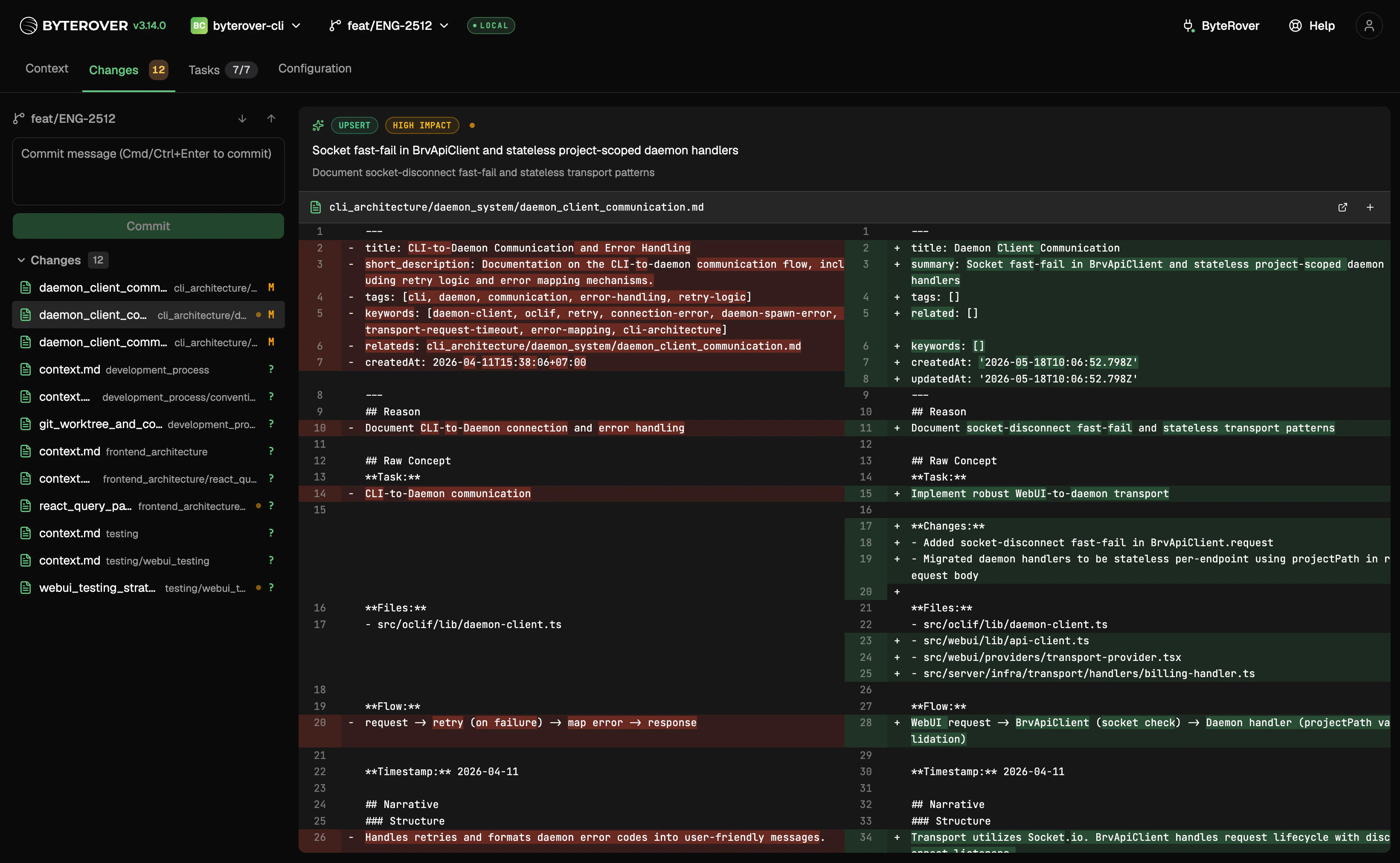
brv webui, alongside your own staged and unstaged changes — there is no separate review interface. Each agent-generated file carries an op-type badge (ADD / UPDATE / UPSERT / MERGE / DELETE), an impact badge (low impact / high impact), and the agent’s reason for the change.
Approve and reject map onto the buttons already in the Changes tab:
- Stage a pending file approves the agent’s edit (and Stage all approves every pending file in the bucket).
- Discard a pending file rejects the edit and rolls it back from the backup. For an agent file, this skips the usual “discard your work?” confirmation.
http://localhost:<webui-port>/changes?project=<project> so notifications deep-link to the right project automatically. To turn the whole flow off for a project, run brv review --disable.
Review and push
Files with pending reviews are excluded frombrv push. You must resolve all reviews before pushing:
brv push while reviews are pending, only the approved and non-reviewed files are pushed. Pending and rejected files are held back.