

brv settings, brv connectors, and brv vc config / brv vc remote. It’s organised as three sections, picked from a sidebar on the left:
- General — daemon-wide runtime settings: concurrency, LLM time budgets, and task-history retention.
- Connectors — wire-up for coding agents like Claude Code, Cursor, and Codex.
- Version control — git identity (
user.name/user.email), theoriginremote, and agent-edit supervision.
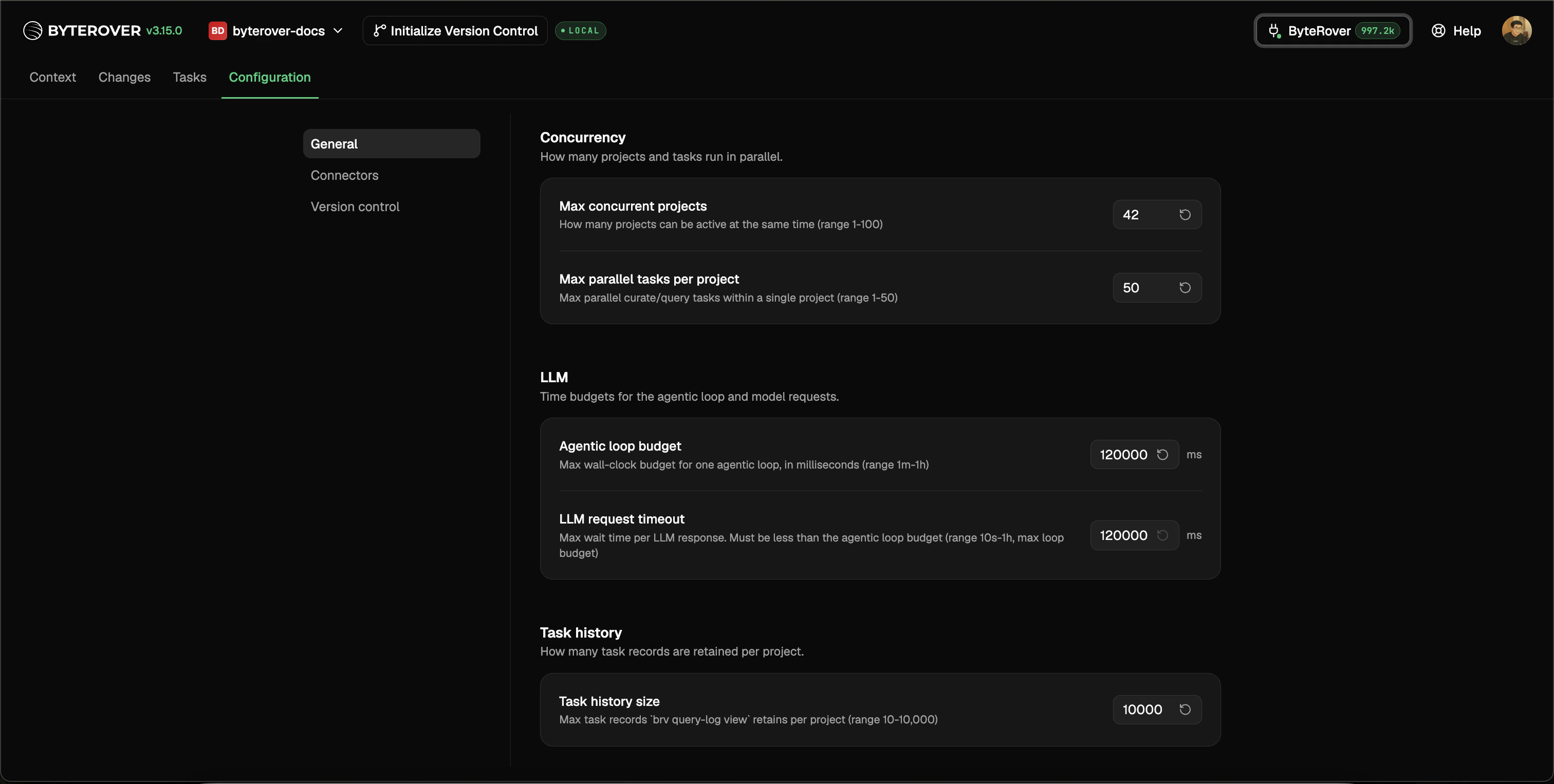
brv restart, a banner appears at the top of the page until you’ve restarted the daemon.
General
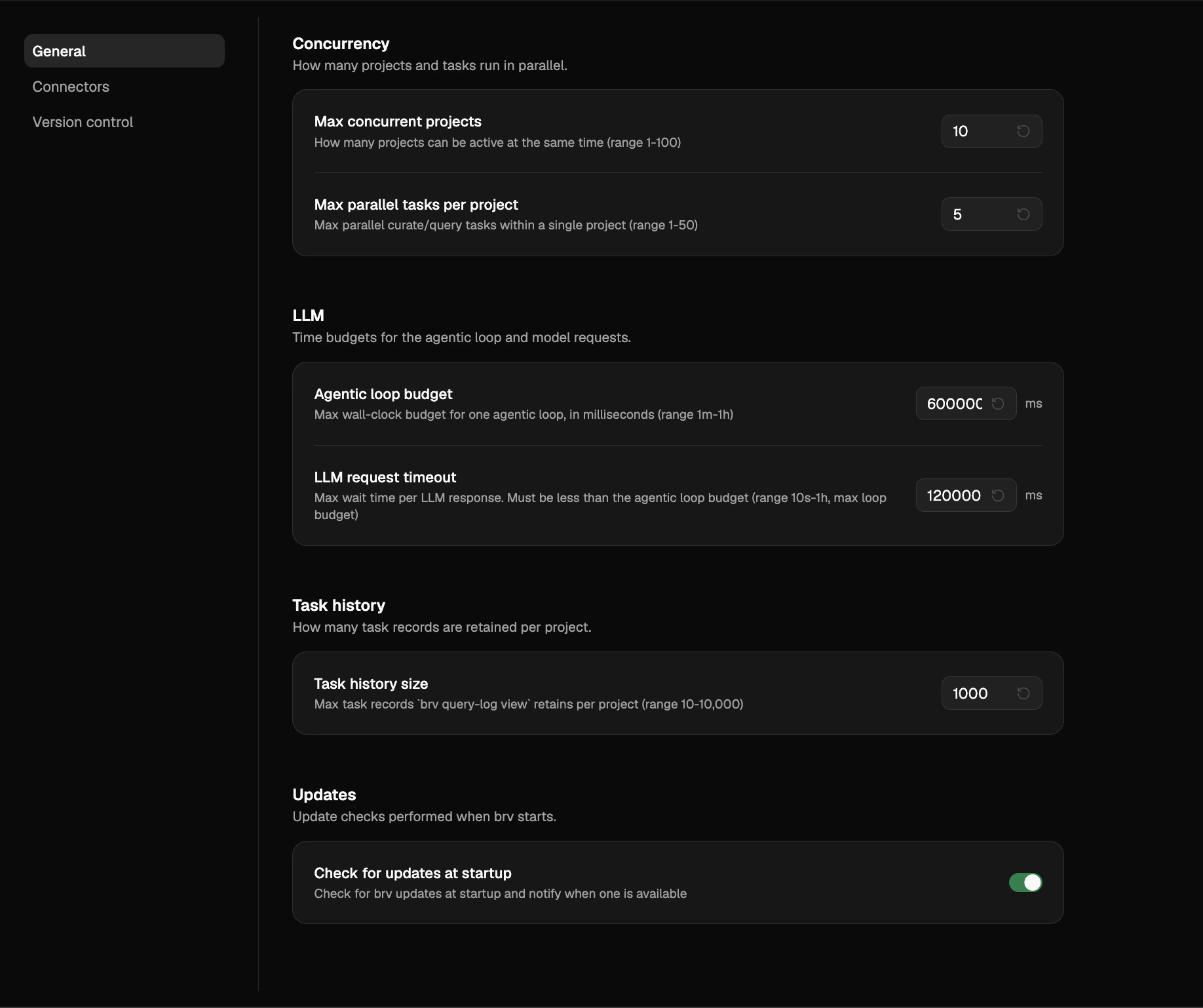
brv settings registry. Each row shows the key, its current value, and the registered default. Click the value to edit it inline.
- Concurrency —
agentPool.maxSizeandagentPool.maxConcurrentTasksPerProject. Controls how many projects can be active simultaneously and how many parallelbrv curate/brv querytasks one project can run. - LLM —
llm.iterationBudgetMsandllm.requestTimeoutMs. Wall-clock budgets for one agentic loop and one LLM HTTP request.requestTimeoutMsmust be ≤iterationBudgetMs; the panel surfaces the constraint when you violate it. - Task history —
taskHistory.maxEntries. Per-project cap on the records the Tasks tab retains. - Updates —
update.checkForUpdates. Toggle (default on) for whetherbrvchecks for new versions at startup and runs the background auto-update. Turning it off silences the y/n update prompt; manualbrv updatestill works.
brv restart to take effect — the restart banner at the top of the page reminds you when one is pending. The Updates panel is the exception: it takes effect on the next brv invocation, no restart needed. The same values are reachable from the CLI; see brv settings for the full key reference, value formats, and the on-disk location of settings.json.
Connectors
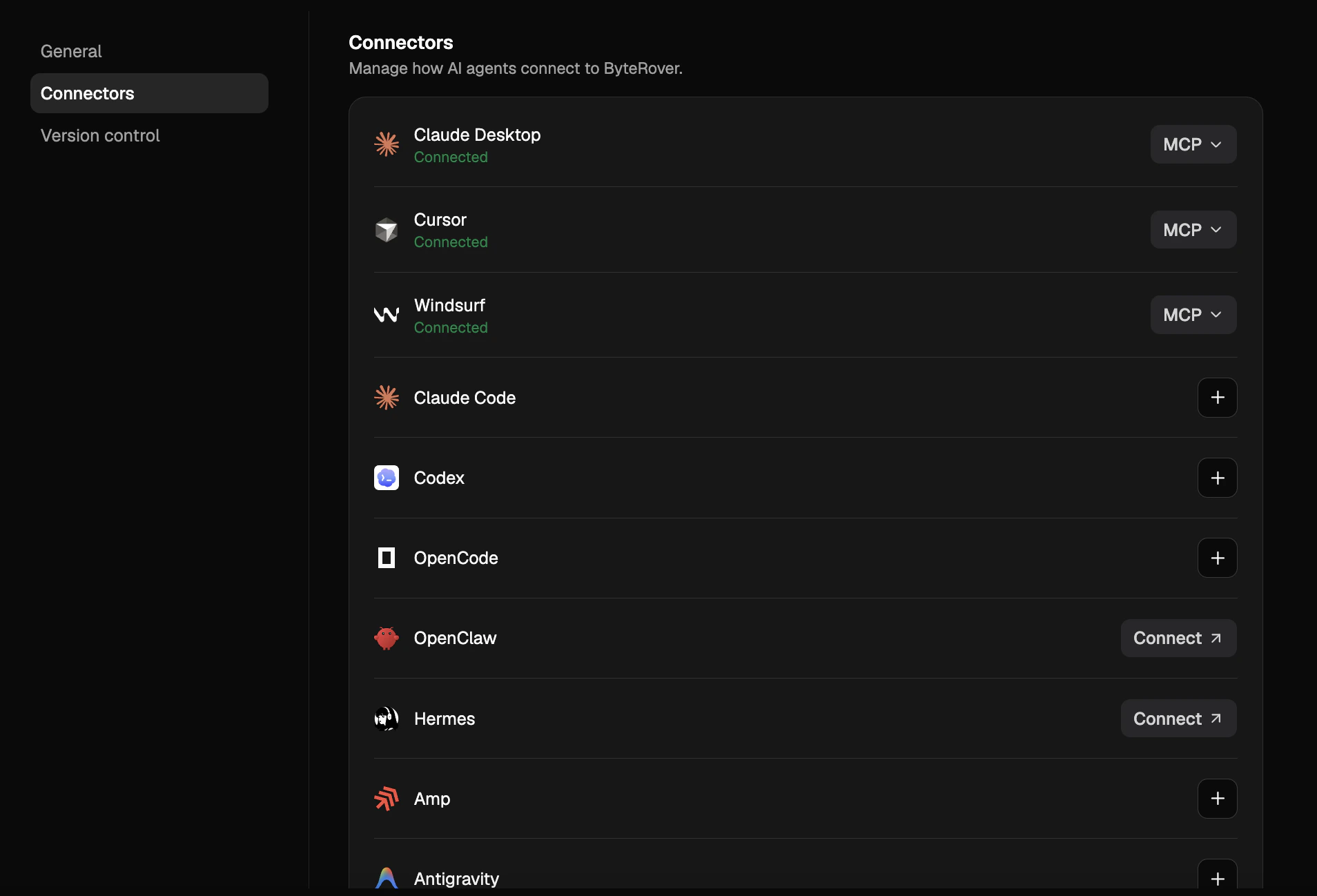
brv connectors — see the Agent Connectors overview for what each integration does.
- See every supported agent and whether it’s already connected
- Install a connector for any agent ByteRover detects on your machine
- Remove a connector without hunting down the relevant config file
Version control
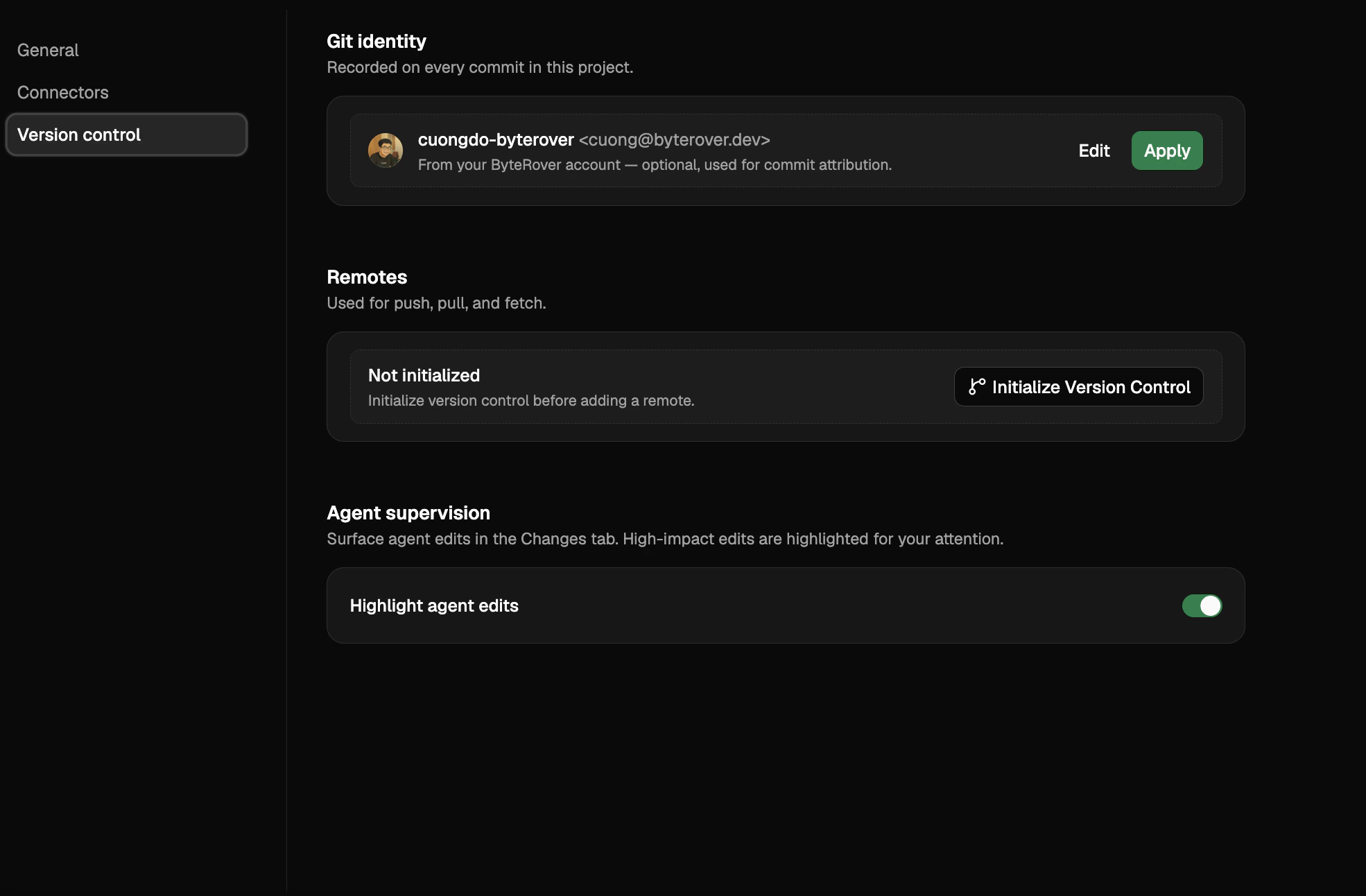
brv vc config, brv vc remote, and brv review --enable / brv review --disable), and all three are scoped to the current project.
Git identity
Commits to your context tree need a name and email. Both are stored locally per project — the same valuesbrv vc config user.name and brv vc config user.email would set.
The panel renders one of three states:
- Configured — name and email are shown inline as
Name <email>. Click Edit to change either field. - Not set, signed in to ByteRover — your account name and email appear in a dashed-bordered row with a one-click Apply button that seeds the values from your account. Edit is still available if you want a different identity.
- Not set, signed out — a “Set manually” button opens the empty form.
Identity is optional for browsing the context tree, but
brv vc commit and the Commit button in the Changes tab require it. If you commit before configuring identity, the Changes tab routes you back here.Origin remote
Your local context tree can point at one ByteRover cloud remote, namedorigin. Push, pull, and fetch in the Changes tab and on the CLI all use this URL.
- Add a remote — when version control is initialized but no remote is set, the panel header shows an Add remote button. The form accepts an HTTPS URL like
https://byterover.dev/<team>/<space>.gitand validates it before saving. Use Find in ByteRover to open the dashboard in a new tab and copy the URL. - Edit the URL — click Edit next to the existing
originrow to replace the URL. The form previews “Replaces current URL<old>” so you can confirm before saving. - Delete the remote — click Delete next to the
originrow. A confirmation dialog explains that push, pull, and fetch will be disabled until a new remote is set; click Remove remote to confirm or Cancel to back out.
Agent supervision
When a connected agent curates into the context tree, ByteRover can flag high-impact edits for your review before they ship to your team. The Agent supervision panel controls whether that flagging is on for this project.- Highlight agent edits — the only control in the panel. When on, agent-generated changes appear in the Changes tab with op-type and impact badges, and high-impact edits get an amber pulse so you can spot them at a glance. When off, agent edits flow into the same Changes lists as your own edits, with no extra annotation or pending-review state.
brv review --disable in this project, and turning it back on is the same as brv review --enable. The state is shared — flipping the switch in either place affects the other.
Next steps
brv settings
Full reference for the General-section keys, including value formats and on-disk location.
Agent Connectors
Reference for supported agents.
Providers & Models
Connect LLM providers.
Git-Semantic VC
Full reference for the underlying version-control commands.