

Team surfaces
ByteRover Desktop has four team surfaces.Select the team
Open ByteRover Desktop and choose the team from the team selector. The selected team controls which Private and Team space sections you see in the sidebar. When you switch teams, Desktop switches the visible spaces too.Open Members
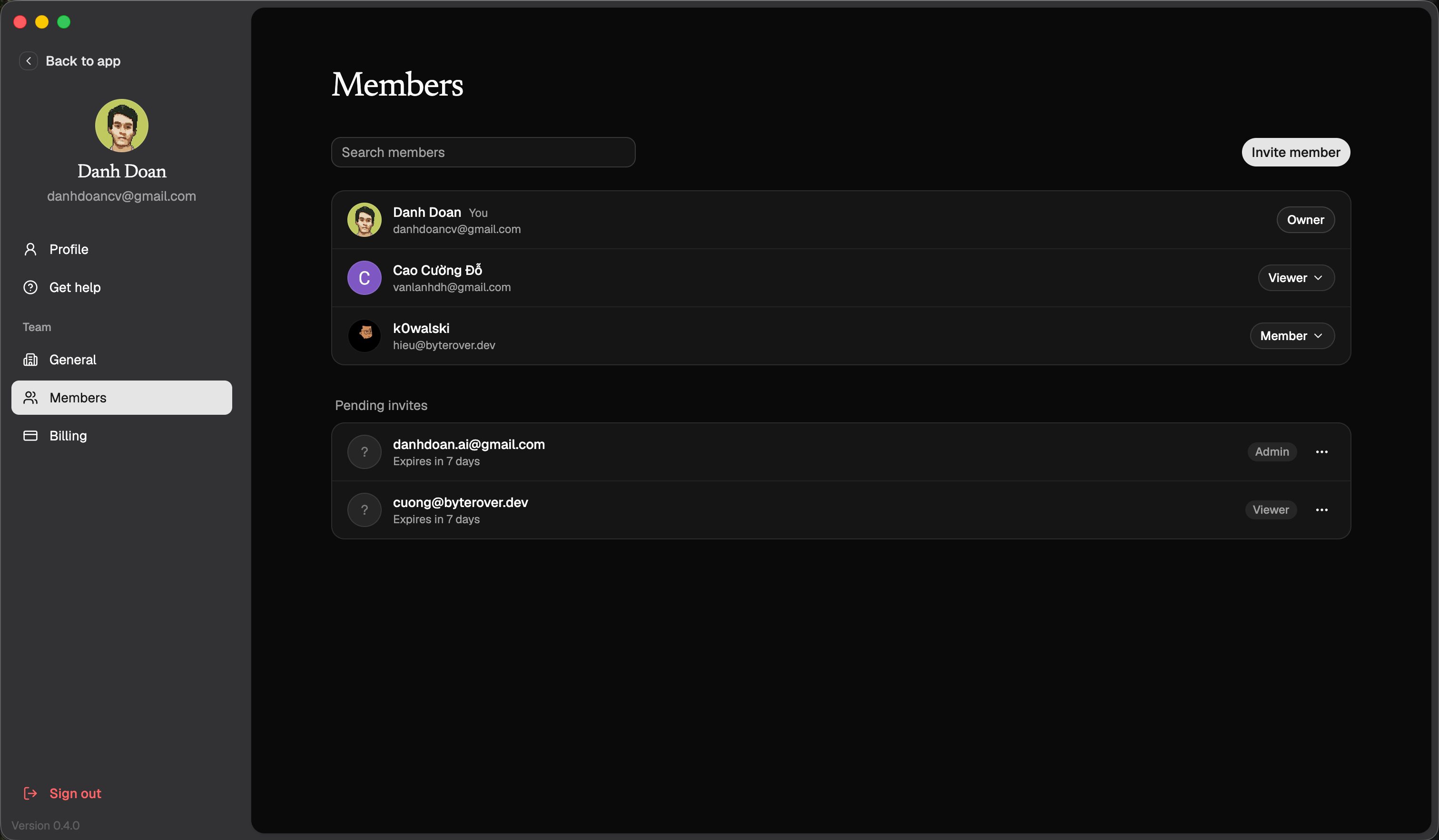
Go to Members to manage the roster. Use search when the roster is long.Invite a teammate
Select Invite member, enter the teammate’s email address, then choose a role. You can assign these roles during invite:- Viewer - read-only access to team memory.
- Member - can add and view memory.
- Admin - can manage members and memory.
Owner is not a normal invite role. Ownership is transferred separately by an existing Owner.
Manage members
From the Members page, Owners and Admins can:- change a member’s role
- remove a member from the team
- resend or revoke pending invitations
- review how many seats are still available
Manage team settings
Open General when you need to manage the team itself.
Leaving a team removes your access to that team’s spaces and memory. Deleting a team permanently deletes the workspace, its spaces, and memberships.
Manage billing
Open Billing to review the current plan and seats. Billing is Owner-only. If someone else owns the team, ask that Owner to manage the plan or payment method. Owners can:- open the billing portal
- manage seats on a paid plan
- resume a scheduled cancellation
- update payment when a payment is past due
- start checkout for a paid plan
Role permissions
Use the smallest role that gives the teammate what they need.
Review permissions when a teammate changes projects or no longer needs access to a shared memory space.
Team spaces
Team spaces make memory reusable across the group. Team roles affect space behavior:- Owners and Admins can create team spaces.
- Members can read and write memory in spaces they can access.
- Viewers can read memory only.
- Billing access stays Owner-only, even for Admins.
Next steps
Space
Manage access for a specific memory space.
Query
Start using shared memory from inside your agent.