

Space levels
ByteRover Desktop organizes spaces into three levels.- Shared with me is global. It shows spaces shared to you from another person or another team. These can come from a direct invite or from a team-wide share.
- Private belongs to the selected team view. These are personal spaces under the selected team. They are private by default, but you can share them with people inside or outside the team.
- Team space belongs to the selected team view. These spaces are visible to the selected team, and you can still share them with people outside the team when the project needs cross-team access.
Choose the right level
Before starting an agent session, open the space that matches the work you are doing.- Use Private for experiments, personal notes, or work that is not ready for the team.
- Use Team space when teammates should reuse the same project memory.
- Use Shared with me when another person or team has shared memory with you.
Create a space
In the sidebar, select the+ button beside Private or Team space.
When creating a space, choose its visibility:
Only Owners and Admins can create team spaces. Members can use spaces they have access to, but cannot create a new team-wide space.
Share with specific people
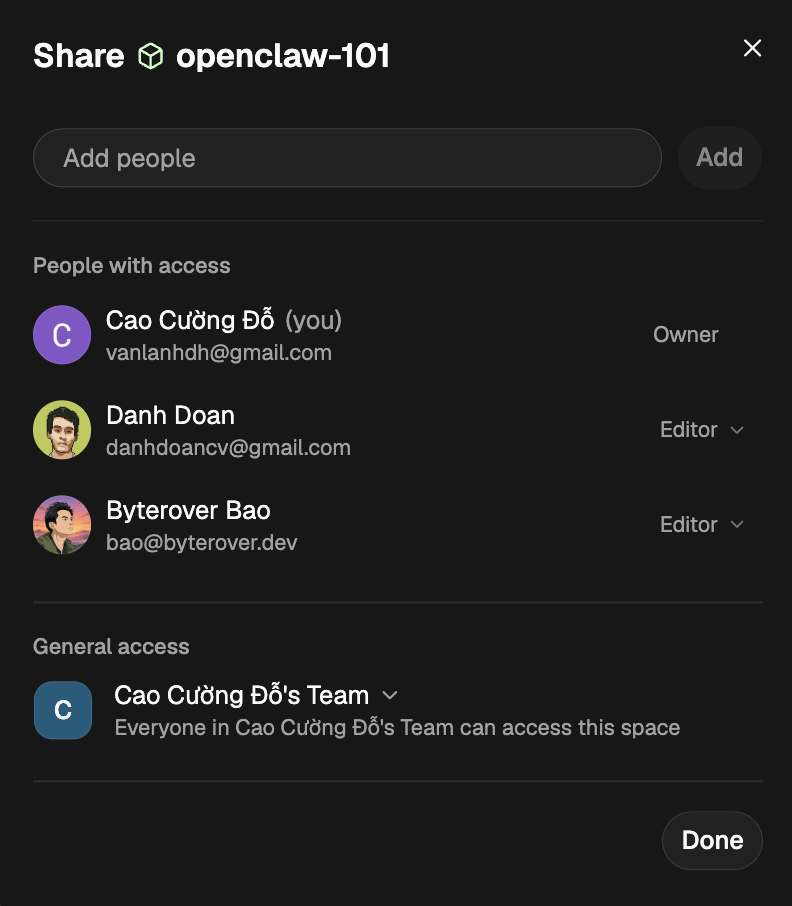
Open the space, select Share, then add a person by email. Choose a role before you add them:
Use Viewer when someone only needs to read memory. Use Editor when their agent should record new context into the space.
You can share a private space or a team space with people outside the selected team. The invited person will see it under Shared with me.
Set general access
In the Share dialog, use General access to choose who can open the space.
When you switch a space from restricted to team access, Desktop shows how many teammates will gain access.
You can also move a space between Private and Team space from the sidebar. Drag the space into the other section to change who can see it.
Review shared spaces
Spaces shared with you appear in Shared with me. Shared spaces can come from:- a direct share to your email
- a team-wide share from another team
Manage a space
Use the row menu on a space to manage it.
View-only spaces show a view-only marker. Your agent is read-only in those spaces too.
Search topics
Use the Desktop search box orCmd K / Ctrl K to search topic titles across visible spaces.
Search results are grouped by:
- Private spaces
- Team spaces
- Shared with me
Next steps
Bind
Connect a project folder to the right space from your agent.
Query
Retrieve memory from the selected space before work starts.