

Before you start
- Install and open ByteRover Desktop.
- Sign in to your ByteRover account.
- Be ready to restart the coding agent after connecting it.
Supported agents
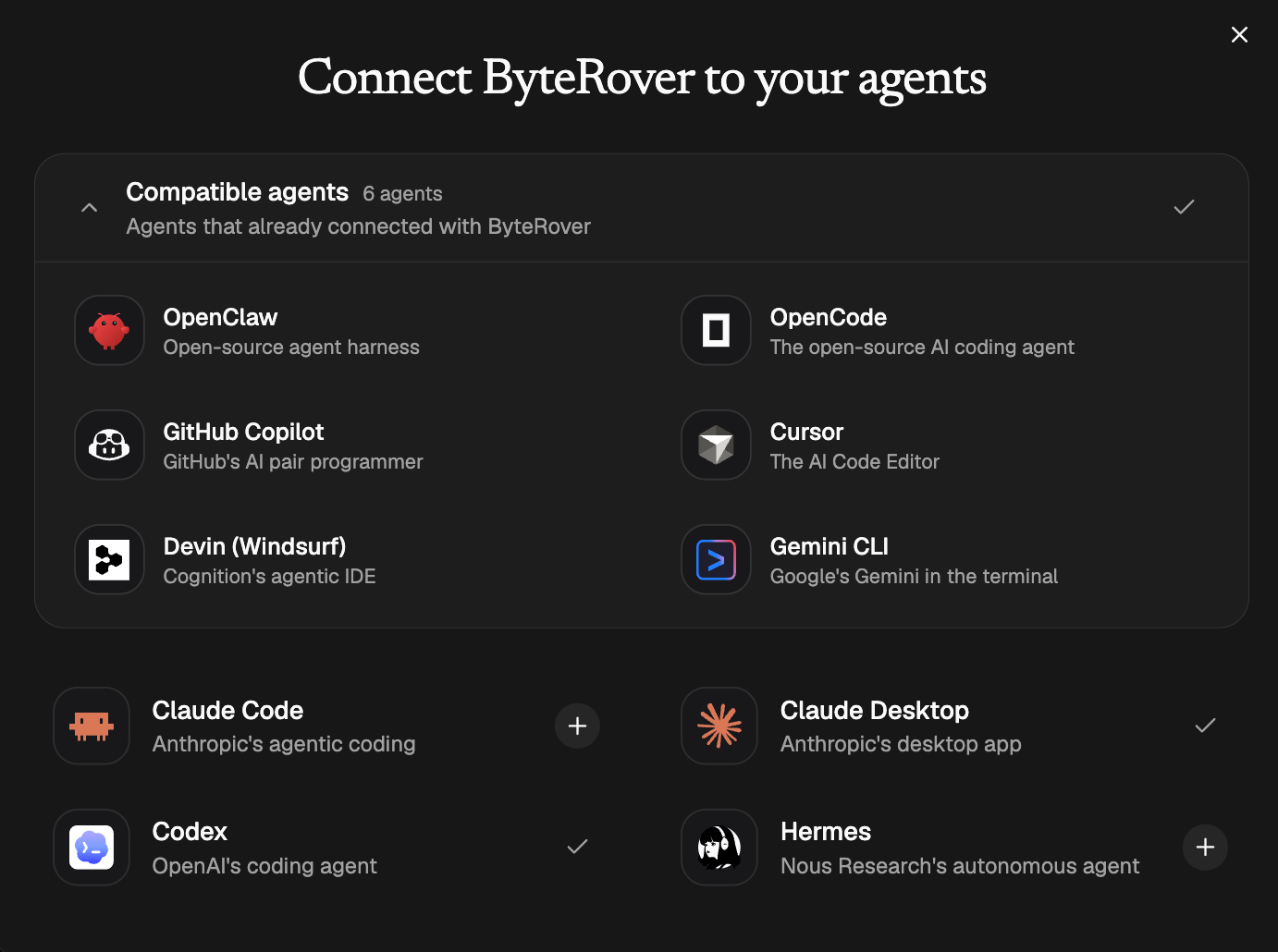
Desktop can connect ByteRover to these coding agents:- Claude Code
- Claude Desktop
- Codex
- OpenCode
- OpenClaw
- Hermes
- Devin (Windsurf)
- Cursor
- Gemini CLI
- GitHub Copilot
Open the agent connection screen
During first setup, Desktop opens Connect your agents after sign-in. After onboarding, open the same controls from Desktop:- select Add agent if no agent is connected yet
- select Manage agents if you already connected one or more agents
Connect your agent
Find the agent you use for development, then follow the action shown in Desktop.
Most agents are connected directly from Desktop. Claude Desktop uses an install guide because its skill upload is manual.
When you are in first setup, select Continue after the agent connection step.
Desktop Connect and Update reinstall the bundled ByteRover skill over any existing Desktop-managed copy.
Update or disconnect
Use Manage agents after the first setup.- Select Update when Desktop shows that an installed skill is outdated.
- Select Disconnect when you want Desktop to remove the ByteRover skill for that agent.
- Reconnect the agent later with Connect.
Use manual install when needed
For OpenClaw manual setup, use the V4 setup script. It installs the published ByteRover skill and configures the ByteRover OpenClaw context engine:The ByteRover skill loads when the agent starts. If the agent was already open, restart it before you try onboarding.
Claude Desktop video guide
Claude Desktop uses a manual upload flow. When Desktop shows Install Guide for Claude Desktop, follow the guide and use this video as the visual reference. The Claude Desktop flow is:- Select Save to Downloads in ByteRover Desktop.
- Open Claude Desktop.
- Go to Customize > Skills > + > Create skill > Upload.
- Upload the
byterover-skill-*.zipfile from Downloads. - Return to ByteRover Desktop and wait for Claude Desktop to show as connected.
Onboard with ByteRover
Open the connected agent in your project and prompt:Next steps
Team
Invite teammates and manage team roles.
Space
Control where project memory lives and who can access it.