Overview
This guide walks you through removing the ByteRover V2 MCP server configuration from Trae.ai.This guide assumes you’ve previously connected Trae.ai with ByteRover V2 via the guide here.
Option 1: Automatic Cleanup (Recommended)
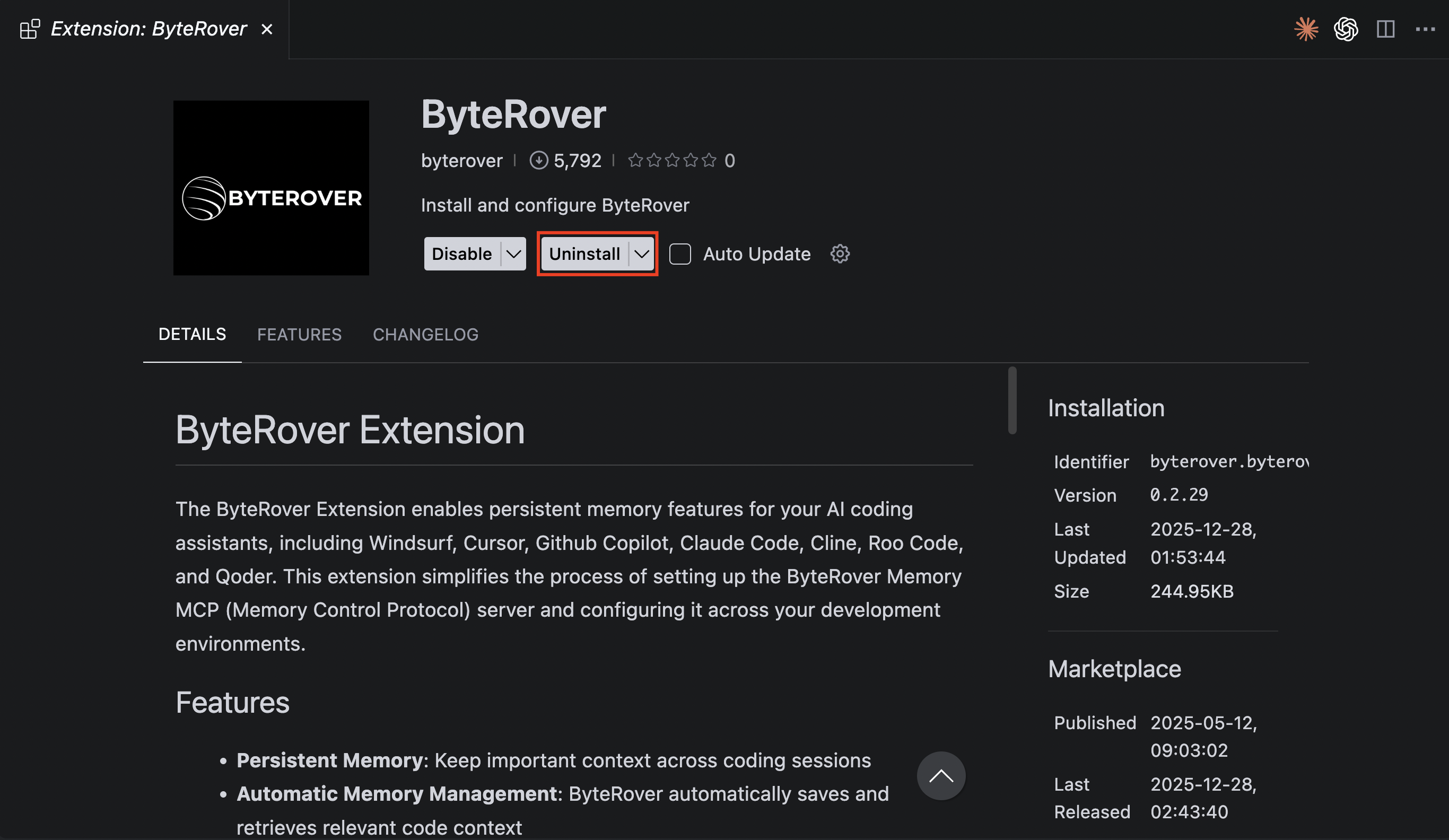
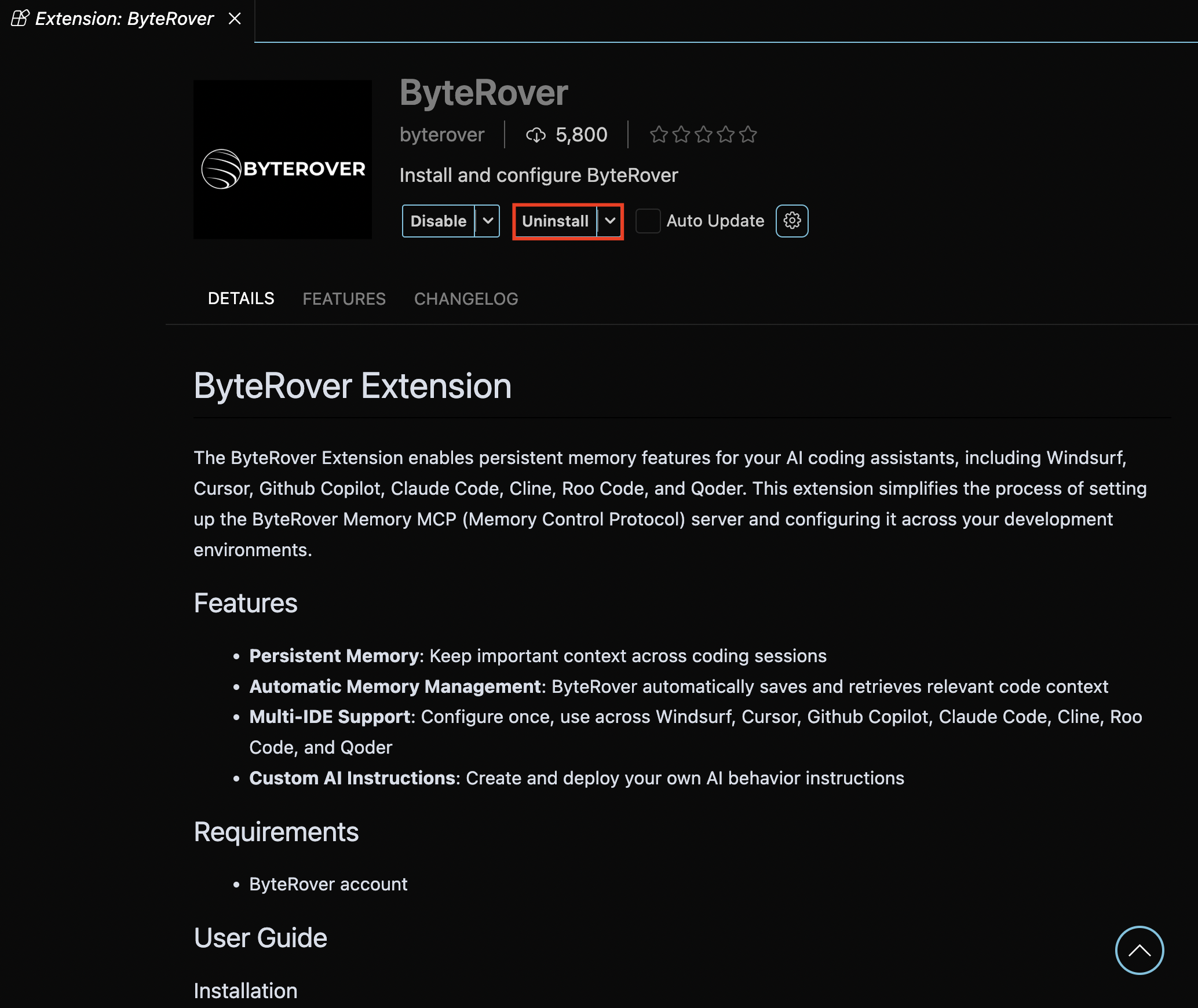
If you have the ByteRover VSCode extension installed, use this automated approach:Clean Up & Migrate
Open the ByteRover extension and click “Clean Up & Migrate”: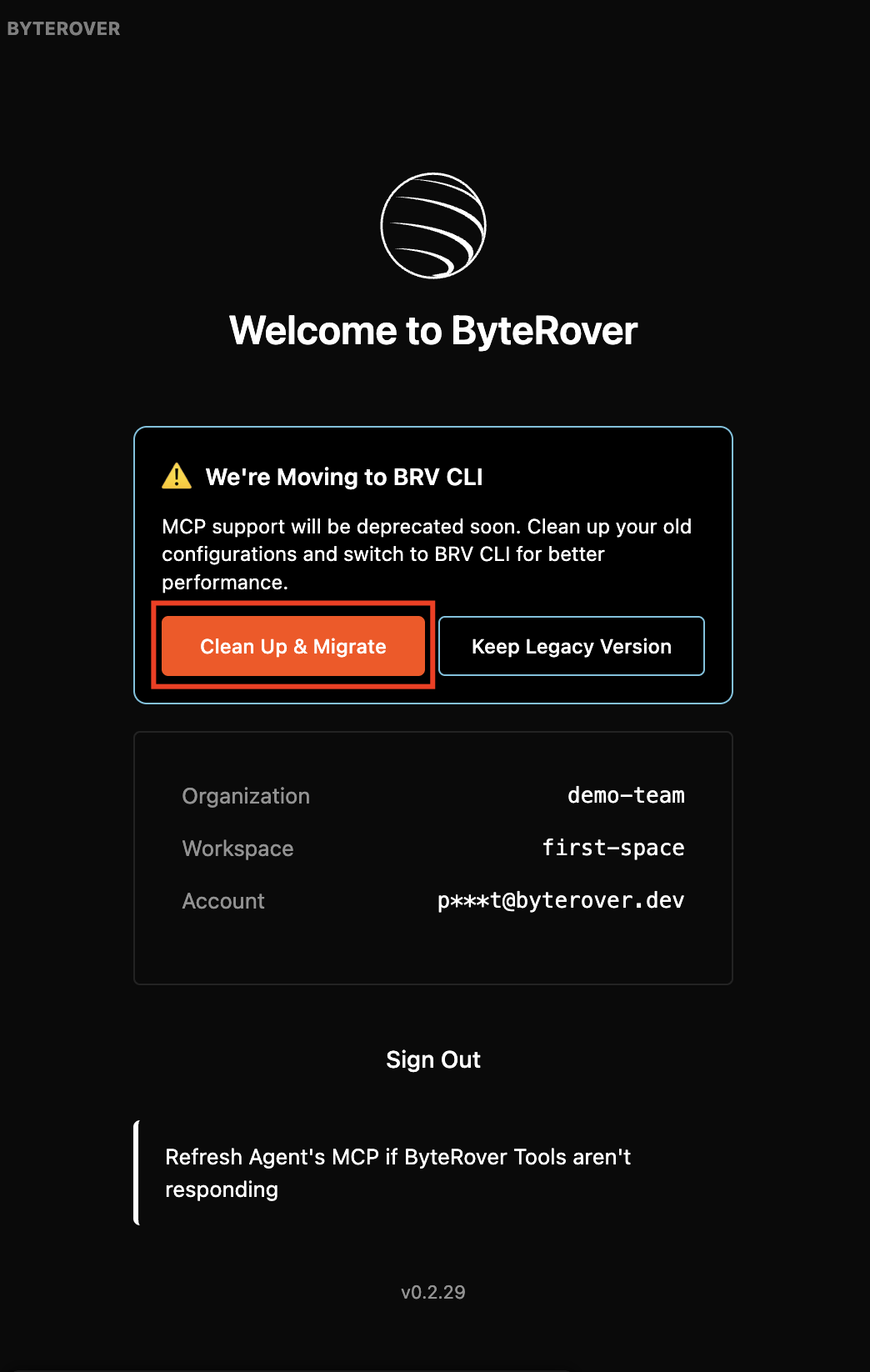
Option 2: Manual Cleanup
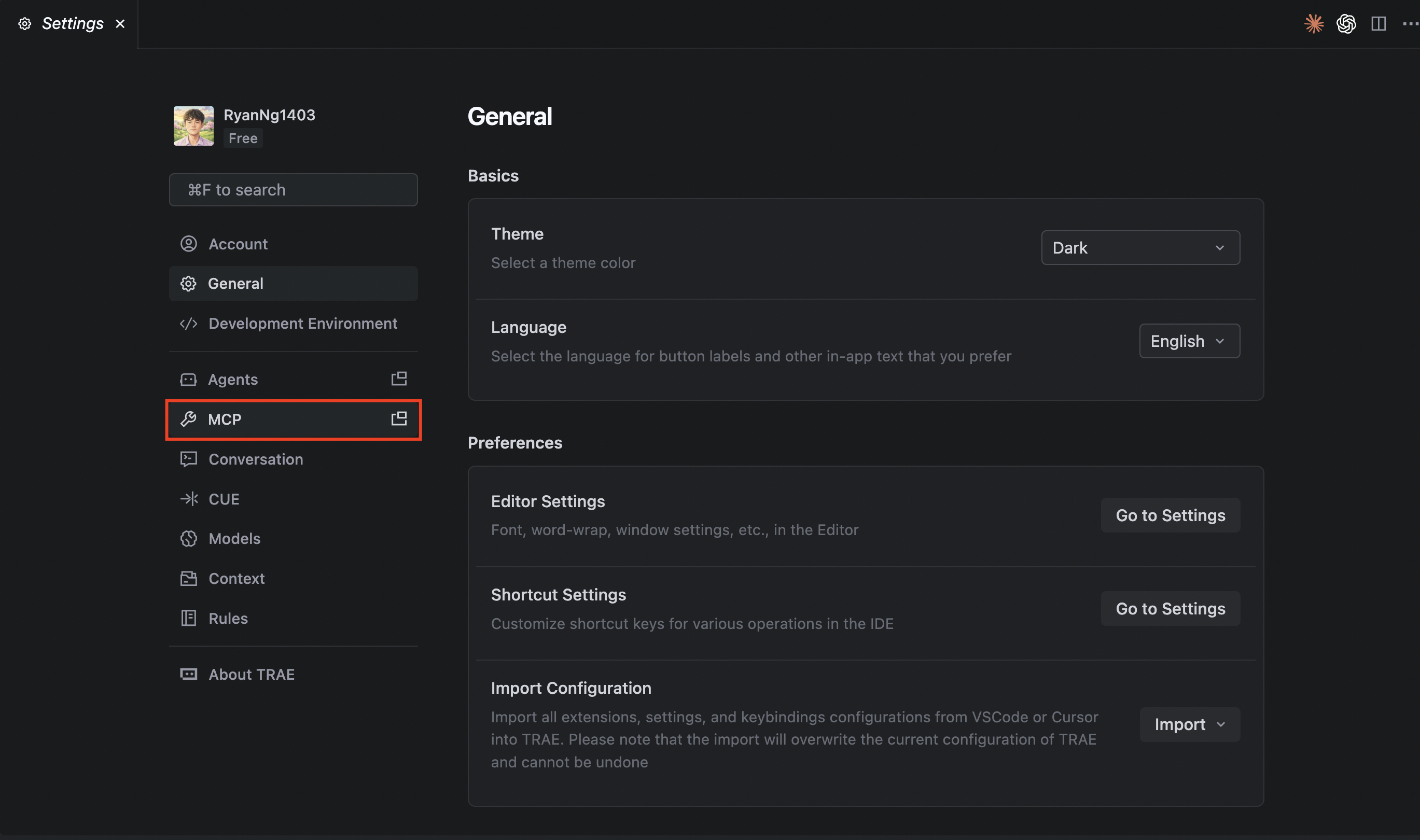
Delete the MCP Server
In the MCP settings page, click on the settings icon for 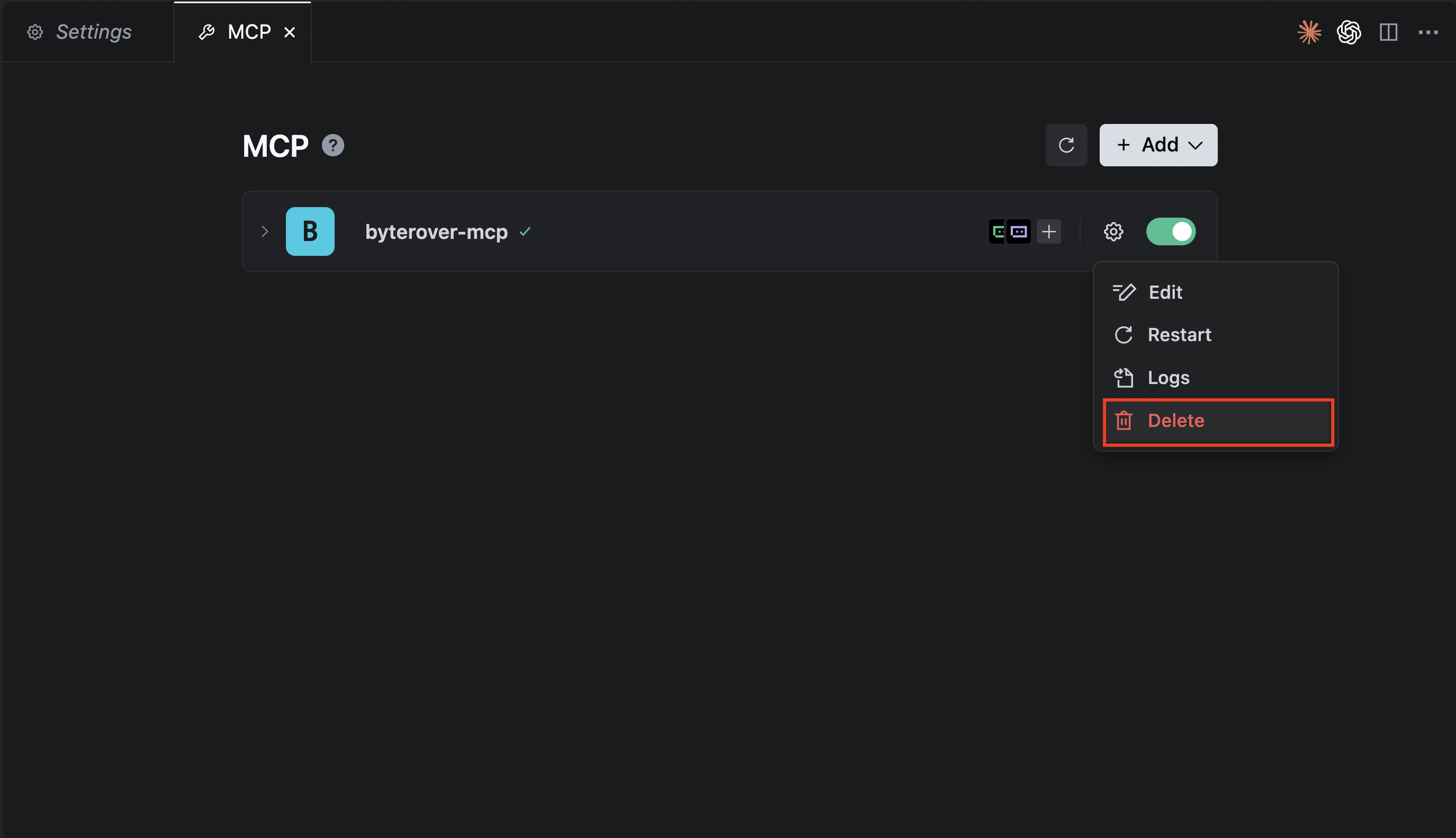
byterover-mcp and select Delete:Remove Automated Instructions
Delete the file
.trae/rules/project_rules.md, which contains the following content: